Everyone captures their own receipts
Your team scans expenses the moment they happen, instead of handing you a shoebox of receipts.
You stay in control
Four roles decide who sees what: employees only their own expenses, you see everything.
Under a minute
One email invitation, one tap to accept. No passwords, no setup calls.
Sending the invitation
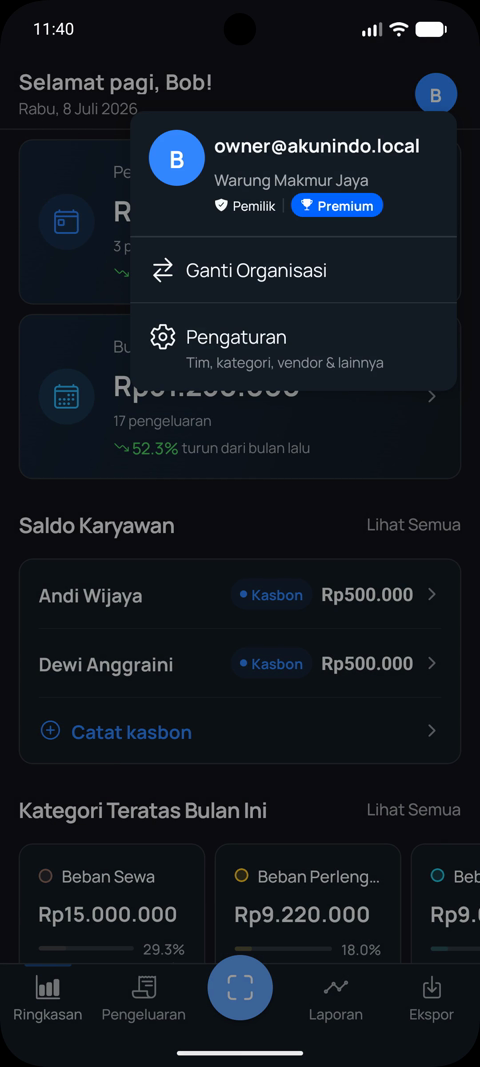
- Open Settings From the dashboard, tap your profile picture and choose Settings.
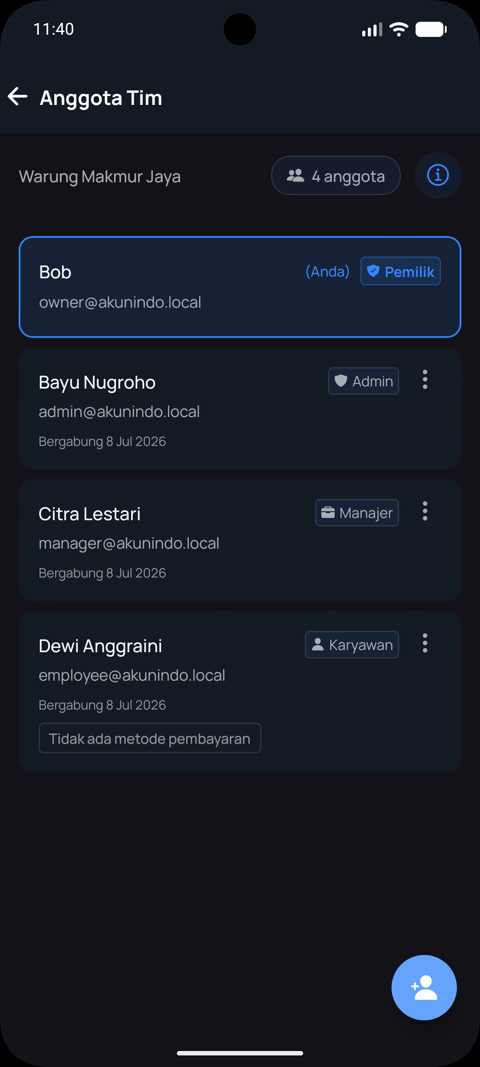
- Go to Team Members You'll see everyone in your organization and their roles.
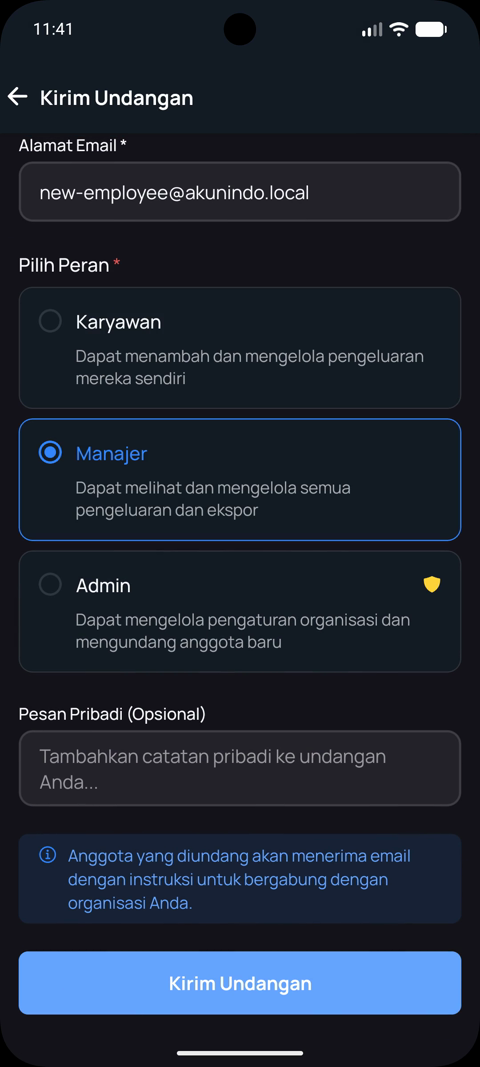
- Send the invitation Tap the invite button, enter your employee's email address, pick a role, and add an optional personal message. Then tap Send Invitation.
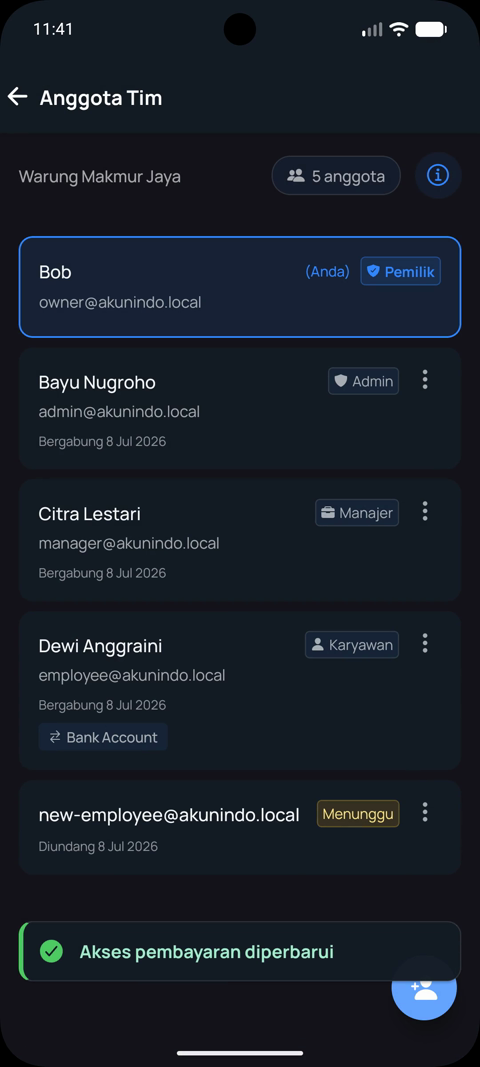
- Wait for acceptance Your employee appears in the list as Pending. As soon as they accept the email invitation, they join your organization automatically.
| Role | What they can do |
|---|---|
| Employee | Add and manage their own expenses |
| Manager | View and manage all expenses and exports |
| Admin | Manage organization settings and invite new members |
Accepting the invitation
- Check your email You'll receive an invitation email from AkunIndo sent by your employer.
- Download the app, but don't register yet Install AkunIndo from the App Store or Google Play. Important: do NOT create a separate account with your email first.
- Accept from the email Open the invitation email on your phone and tap Accept. The link verifies your email automatically and takes you straight into your company's organization.
Tip: always join through the invitation email. If you register a separate account first, you would create your own new organization instead of joining your employer's.